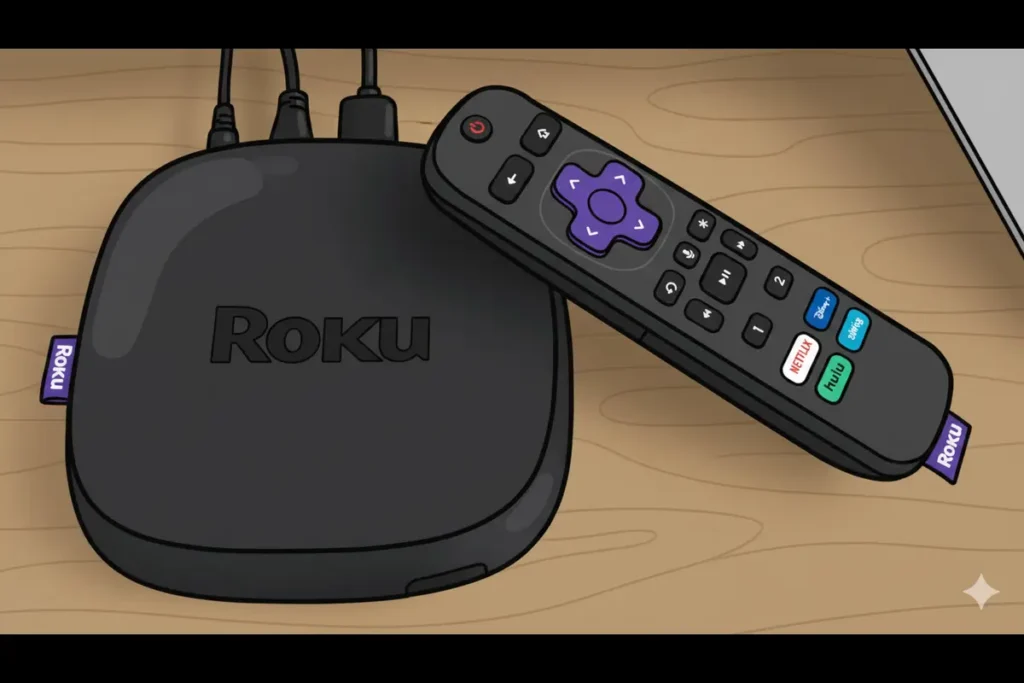
Roku is amazing, right? It turns any TV into a smart TV, giving you access to all your favorite streaming services in one place. But what happens when things go wrong? Maybe your remote has stopped working, you have a question about a charge, or your device is just not connecting. Suddenly, that seamless streaming experience feels very frustrating.
When you have an issue, you want to talk to someone who can help you fix it—fast. The problem is, getting in touch with a real, live human at a big tech company can sometimes feel like an impossible mission. You click through endless support pages, get stuck in chatbot loops, and start to wonder if anyone is actually there. It’s so frustrating!
Don’t worry, I’ve been there, and I’m here to help! In this guide, I’ll walk you through all the different ways you can contact Roku’s customer service. We’ll cover everything from their official support site to phone numbers and even social media. By the end of this post, you’ll know exactly where to go and what to do to get the support you need. Let’s get your Roku running perfectly again!
Your First Stop: The Official Roku Support Website
Before you try picking up the phone, your best bet is often Roku’s own support website. It’s packed with articles, guides, and troubleshooting steps that can solve many common problems without you ever needing to speak to anyone. I know, I know, you want to talk to a person, but trust me—spending a few minutes here can save you a lot of time!
The support site is organized by topic, covering everything from setup and installation to billing and remote control issues.
Here’s a quick guide to navigating their support page:
- Go to the Roku Support page.
- You’ll see a search bar at the top. Type in your problem, like “remote not working” or “how to add a channel.”
- Below the search bar, you’ll find common support topics like:
- Getting Started: For help with setting up your new device.
- Accounts, Payments & Subscriptions: For billing questions or managing your Roku account.
- Features, Settings & Updates: To learn more about what your Roku can do.
- Channels & Viewing: If you’re having trouble with a specific app.
- Remotes, Players, TV & Audio: For hardware-related issues.
Often, you’ll find a step-by-step guide with pictures or even a video that walks you through the solution. It’s a fantastic resource!
How to Chat or Speak with a Roku Representative
Okay, so you’ve tried the support articles, and your problem is still not solved. Now it’s time to reach out to a human. Roku does offer options to chat with or speak to a customer service agent, but getting there can be a little tricky. They’ve designed their website to encourage you to find the answer yourself first.
Based on forum discussions and user experiences, here’s a reliable method to get to the live contact options:
- Navigate to the Roku Contact Us page.
- You will be prompted to select a topic. This is the important part! The contact options you see depend on the topic you choose.
- For the best chance of getting a live chat or phone option, select “Account, Payments & Subscriptions.”
- Next, choose a sub-topic. A good one to select is “Question about a charge.”
Following these steps should present you with options to either start a live chat with an agent or get information to speak with someone directly. This seems to be the most consistent way users have found to bypass the automated help articles and connect with a person.
Other Ways to Contact Roku Customer Service
If the official support path isn’t working for you, don’t give up! There are several other avenues you can explore to get the help you need.
Contacting Roku by Phone
Sometimes, you just need to talk it out. Hearing a human voice on the other end of the line can be incredibly reassuring. Roku has a main phone number you can call:
- Roku Customer Service Phone Number: (408) 556-9391
Keep in mind that this is their corporate number, so you might have to navigate a phone menu. Be prepared with your Roku account information, the model of your device, and a clear description of your problem. Patience is key here!
Reaching Out Via Email
If your issue isn’t urgent, sending an email can be a good option. This allows you to explain your problem in detail and attach any screenshots or photos that might be helpful.
- Roku Customer Service Email: customerservice@roku.com
When you write your email, be sure to include:
- Your full name and the email address associated with your Roku account.
- The serial number of your Roku device (you can find this in Settings > System > About).
- A detailed description of the problem you’re experiencing.
- Any troubleshooting steps you’ve already tried.
Providing all this information upfront will help the support team resolve your issue more quickly.
Using Social Media for Support
In this day and age, many companies offer customer support through their social media channels, and Roku is no exception. Sometimes, a public post can get a quicker response than a private email.
- X (formerly Twitter): You can try tweeting at their official support handle, @RokuSupport, or their main account, @Roku. Keep your tweet concise and to the point. They may ask you to send them a direct message (DM) with more details.
- Facebook: Visit Roku’s official Facebook page and send them a message or post on their wall.
When using social media, remember to never share sensitive personal information—like your password or full credit card number—in a public post.
Contacting Roku Executives
If you’ve tried everything else and are still not getting the resolution you need, you might consider escalating your issue to a company executive. This should be your last resort, but it can be effective for complex or unresolved problems.
The consumer advocacy site Elliott.org lists contact information for Roku’s executive team.
- Jeff Hensien, Vice President, Customer Support: jhensien@roku.com
- Anthony Wood, Chief Executive: awood@roku.com
When contacting an executive, be professional, polite, and concise. Briefly explain your issue, the steps you’ve already taken to resolve it, and what you would like them to do. This approach often gets your case directed to a specialized team that can provide a higher level of support.
Final Thoughts on Getting the Help You Need
Dealing with tech issues can be a real headache, but getting help from Roku doesn’t have to be. By starting with their comprehensive support website and then moving on to direct contact methods like chat, phone, or email, you can find a solution to almost any problem.
Remember to have all your information ready before you reach out, and always be polite and patient with the customer service representatives. They are there to help you! With these tips, you’ll be back to enjoying your favorite shows and movies on your Roku in no time.
If you’ve had a great (or not-so-great) experience with Roku customer service, share it in the comments below! Your story could help someone else navigate the process.
Frequently Asked Questions (FAQs)
Here are answers to some of the most common questions about contacting Roku customer service.
What is the best way to contact Roku customer service?
The most effective way is to start with the Roku Contact Us page. Select the topics “Account, Payments & Subscriptions” and then “Question about a charge” to get the best options for live chat or speaking with an agent.
Does Roku offer 24/7 customer support?
Roku’s live support availability can vary. While their online help center is available 24/7, live chat and phone support typically operate during standard business hours.
What information should I have ready before contacting Roku?
To get the quickest help, have the following information on hand:
- Your Roku account email address.
- The model and serial number of your Roku device.
- A clear and detailed description of your issue.
- Any error messages you are seeing.
- The steps you have already taken to try and fix the problem.
Can I contact Roku by mail?
According to consumer advocacy resources, Roku does not handle billing or technical support issues via postal mail. It’s best to use their digital channels or phone number for these types of concerns.
What should I do if my Roku remote isn’t working?
First, try replacing the batteries. If that doesn’t work, try re-pairing the remote with your device. You can find instructions for this on the Roku support website. If you still have issues, this is a great reason to contact customer support.
How can I get help with a billing or subscription issue?
For billing issues, the most direct path is through the Roku Contact Us page. As mentioned, selecting the options related to billing or charges is the fastest way to connect with a representative who can handle financial questions.
Is there a specific contact for accessibility issues?
Yes. If you have a complaint or question related to accessibility for individuals with visual or hearing impairments, you can contact:
Stephen Kay, Senior Vice President and General Counsel
Email: accessibility@roku.com
Phone: (408) 556-9391
What if I forgot my Roku account password?
You can easily reset your password on the Roku website. Look for the “Forgot password?” link on the sign-in page. If you run into any trouble, customer service can assist you with resetting your password and regaining access to your account.
How do I find my Roku device’s serial number?
You can find the serial number in a few places:
- On the back or bottom of your Roku device.
- On the original packaging.
- From your Roku’s home screen, navigate to Settings > System > About. The serial number will be listed there.